
Fixing Corrupted Blueprints
- Nov 10, 2023
- 4 min read
Ever had a blueprint suddenly have a component that was unable to show the details panel of a component?
If you've used Unreal long enough, chances are high that you'll run into blueprint corruption even without the usual cases like hot reloading. Source control issues, and bad hard drives can be a nightmare too.
The thing is, there are cases where blueprint corruption is nothing more than a pointer nulled. The way that Unreal saves and loads actors can rarely lead to a pointer serializing the wrong component, or loading it null. Meanwhile the component is created from a different path and still loaded but unaccessible by normal means. Since the component exists, the creation code will not create a new one and assign it back to the pointer like normally happens when you write a fresh class and make a UPROPERTY and a CreateDefaultSubobject call.
The fix once you realize this is very simple.
Find the component.
Repopulate the pointer with the component.
Save the blueprint so that the pointer saves correctly again.
If you're just interested in the tool, grab it from here as a plugin. You'll need to unzip it into your project's plugins folder and build it's binaries. Then you should be able to open it's folder in editor and access the blueprint there. Pick a class, component, and pointer property, and then right click the blueprint and Run it.
If you're interested in learning the workings or want to set it up yourself from the ground up, then continue on! This won't be handholding through the C++, just giving a basic rundown.
Lets start with the header file
UCLASS()
class AUTHAEREDITORUTILITIES_API UBlueprintComponentPointerCorruptionFixer : public UEditorUtilityObject
{
    GENERATED_BODY()
public:

    UPROPERTY(BlueprintReadOnly, EditDefaultsOnly)
    TSubclassOf<UObject> ObjectClass;

    UPROPERTY(BlueprintReadOnly, EditDefaultsOnly, Meta=(GetOptions="GetAvailableComponentNames"))
FName ComponentToUse;

    UPROPERTY(BlueprintReadOnly, EditDefaultsOnly, Meta=(GetOptions="GetAvailableComponentPropertyNames"))
    FName ComponentPropertyNameOnClass;

    virtual bool CanEditChange(const FProperty* InProperty) const override;
    virtual void PostEditChangeProperty(FPropertyChangedEvent& PropertyChangedEvent) override;

    UFUNCTION(BlueprintCallable)
    void FixSelectedBlueprint();

    UFUNCTION()
    TArray<FName> GetAvailableComponentNames();

    UFUNCTION()
    TArray<FName> GetAvailableComponentPropertyNames();
};
To break this down. There are three properties and three major functions. Properties
ObjectClass - The class with the broken component.
ComponentToUse - The component that we want to put back into the pointer.
ComponentPropertyNameOnClass - The pointer property we want to fix.
Functions
FixSelectedBlueprint - We call this from the child blueprint's Run function. This attempts to take the user's selections and fix the selected pointer on the picked class.
GetAvailableComponentNames - This gathers all selectable components from the picked class by getting it's CDO and acessing all of it's subobjects.
GetAvailableComponentPropertyNames - This gathers all selectable FObjectProperties on the class. These are any UPROPERTY pointers that can hold an object of any kind.
There are also some PostEdit and CanEdit functions there for some minor UX, these are optional.
Lets look at the functions in the C++ file.

void UBlueprintComponentPointerCorruptionFixer::FixSelectedBlueprint()
{
    if (!IsValid(ObjectClass))
    {
       return;
    }

    UObject* MissingComponent = nullptr;

    TArray<UObject*> FoundObjects;
    GetObjectsWithOuter(ObjectClass.GetDefaultObject(), FoundObjects);
    for (UObject* FoundObject : FoundObjects)
    {
       if (FoundObject->GetFName() == ComponentToUse)
       {
          MissingComponent = FoundObject;
          break;
       }
    }

    if (!IsValid(MissingComponent))
    {
       return;
    }

    UObject* CDO = ObjectClass.GetDefaultObject();
    FObjectProperty* ComponentPointer = FindFProperty<FObjectProperty>(ObjectClass, ComponentPropertyNameOnClass);

    if (UObject** ValuePtr = ComponentPointer->ContainerPtrToValuePtr<UObject*>(CDO))
    {
       *ValuePtr = MissingComponent;
    }

    CDO->GetClass()->GetPackage()->MarkPackageDirty();
    UEditorAssetLibrary::SaveAsset(CDO->GetClass()->GetPackage()->GetFullName());
}

TArray<FName> UBlueprintComponentPointerCorruptionFixer::GetAvailableComponentNames()
{
    TArray<FName> ReturnNames;
    if (IsValid(ObjectClass))
    {
       TArray<UObject*> FoundObjects;
       GetObjectsWithOuter(ObjectClass.GetDefaultObject(), FoundObjects);
       for (UObject* FoundObject : FoundObjects)
       {
          if (FoundObject->IsA(UActorComponent::StaticClass()))
          {
             ReturnNames.Add(FoundObject->GetFName());
          }
       }
    }
    return ReturnNames;
}

TArray<FName> UBlueprintComponentPointerCorruptionFixer::GetAvailableComponentPropertyNames()
{
    TArray<FName> ReturnNames;
    if (IsValid(ObjectClass))
    {
       for( TFieldIterator<FObjectProperty> Property(ObjectClass); Property; ++Property )
       {
          ReturnNames.Add(Property->GetFName());
       }
    }
    return ReturnNames;
}

bool UBlueprintComponentPointerCorruptionFixer::CanEditChange(const FProperty* InProperty) const
{
    if (InProperty->GetFName() == FName("ComponentToUse") ||
       InProperty->GetFName() == FName("ComponentPropertyNameOnClass"))
    {
       return IsValid(ObjectClass);
    }

    return Super::CanEditChange(InProperty);
}

void UBlueprintComponentPointerCorruptionFixer::PostEditChangeProperty(FPropertyChangedEvent& PropertyChangedEvent)
{
    Super::PostEditChangeProperty(PropertyChangedEvent);

    if (!IsValid(ObjectClass))
    {
       ComponentToUse = FName();
       ComponentPropertyNameOnClass = FName();
    }
}
The code above is very basic. This is just an editor tool to correct some breakage.
Lets go through the functions in this order.
GetAvailableComponentPropertyNames
GetAvailableComponentNames
FixSelectedBlueprint
GetAvailableComponentPropertyNames and GetAvailableComponentNames are GetOptions function. Meaning they are ran when you open the dropdown for the ComponentToUse or ComponentPropertyNameOnClass. These need to be UFUNCTION marked, and are specified in the UPROPERTY meta data of the FNames that use them. What this does is instead of allowing you to write in an FName by hand, it will give you a dropdown list of FNames to select. Much easier to use than having to go copy pasting stuff everywhere.
GetAvailableComponentPropertyNames: This function takes our selected class and iterates over it's Object Properties. All I've done here is just returned the properties FName. An upgrade to this might be to check the pointer in the CDO. If the pointer is null for this property then pass it back. That way you would only get possibly corrupted properties. I chose to be basic about it.
GetAvailableComponentNames: This function is a little more interesting. It houses a function named GetObjectsWithOuter. I learned about this while learning about some SaveGame stuff. Basically it allows you to get every single subobject of an instance of something. This is regardless of whether they are housed in pointers, etc. The component was saved and loaded with the blueprint class, it just cannot be accessed due to the corrupt pointer. So we dump an array of all of these component's names into a list for picking.
FixSelectedBlueprint: This function takes your choices. Finds the component on the class via the name you picked, then finds the property by the other name you picked, and simply sets the component back into the pointer. Afterwards it marks the blueprint's package dirty and saves it. After running this with valid selections, you should be able to see the details panel again even without restarting. And restarting should correctly load that pointer again.
Next we go to the editor and create a new blueprint anywhere you like. I personally created this class in a plugin, and also created the blueprint in that plugin. This means I can easily just copy this plugin to a new project and instantly use it with no extra setup.
Just right click the content browser, go to Editor Utilities -> Editor Utility Blueprint

In the class picker, you'll see the C++ class here.
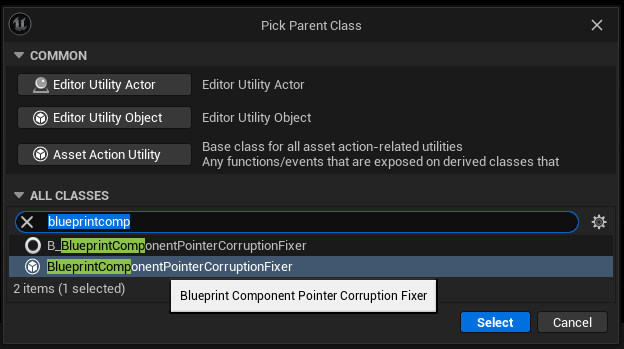
After creating the blueprint. Open it up and override the Run function. Then call the FixSelectedBlueprint function.

Once this is done, you can pick a class, Component, and Name in the Class Defaults. Then right click the blueprint in the content browser and do Run Editor Utility Blueprint.

The component in the class should now be fixed!
Thank you for reading, and I hope this tool or the creation of it helps you in some way!
Comments